An Outlook distribution list is a saved group of email addresses that lets you send one message to a defined set of employees at once. For internal communications teams managing recurring sends to departments, locations, or project teams, they are a foundational part of how work gets done.
For IC teams focused on managing email distribution lists without IT involvement, this dependence on the Admin Center is the biggest friction point. Creating a list takes five minutes, but keeping it accurate across a year of new hires, departures, reorgs, and role changes is where the real work lives. You usually see it after a send goes out, when someone points out that their team was missed or that a former employee is still on the list.
This guide covers how to manage employee email distribution lists across Classic Outlook, New Outlook, and Microsoft 365 distribution groups, including the permissions issues and version differences that tend to cause the most confusion. It also covers the governance practices that keep lists from going stale, the troubleshooting scenarios that slow teams down, and how ContactMonkey’s list management connects directly to your directory and HRIS so your audiences stay accurate without depending on someone remembering to update a spreadsheet.
What Is a Distribution List in Outlook and When Should You Use One?
A distribution list in Outlook is a named group of email addresses you can address as a single recipient. Type the list name in the To field, and Outlook resolves it to every member. That’s the setup. What makes it useful or frustrating depends entirely on how your organization is structured and how well the list is maintained.
Microsoft uses different terminology depending on which version of Outlook you are running, and the distinction matters when you are trying to find the right menu or troubleshoot a permissions issue.
- A Contact Group is what Classic Outlook desktop calls a personal distribution list. It lives in your Contacts and is only accessible to you unless you share it.
- A Contact List is the same concept in New Outlook and Outlook on the web. The name changed with the interface update, but the function is identical.
- A Microsoft 365 Distribution Group is an organization-wide list created and managed in the Microsoft 365 Admin Center, typically owned by IT. This is the version most IC teams rely on for all-staff or department-wide sends, and it is also the version that requires IT involvement to update.
Unlock Internal Comms Superpowers
Discover why 10,000+ rely on us. See the internal email and employee newsletter platform in action.
Book demo

When distribution lists work well:
Outlook distribution lists are usually fine for smaller teams where things don’t change that often. They work well when you’re sending to the same group each time, like leadership or a regional team, and someone is responsible for keeping the list up to date. If your audience is under 200 people and your org structure isn’t shifting much, a well-maintained distribution list is often enough.
When distribution lists create problems:
Static lists tend to pick up errors over time, and most IC teams don’t notice until something goes wrong. Someone leaves and stays on the list for months. A reorg creates three new departments, but the old lists never get retired. A new hire misses a benefits enrollment deadline because nobody updated the regional list after onboarding. According to ContactMonkey’s 2026 Global State of Internal Communications (GSIC) report, 56% of respondents say employees sometimes miss key updates, and 30% say this happens often or very often. Stale distribution lists in Outlook are one of the most common and least visible reasons why.
The other challenge is ownership. Microsoft 365 distribution groups are managed in the Admin Center, which means every time you need to update a list, you have to go through IT. That might work in theory, but in practice it slows things down, especially when you’re working on a deadline or managing multiple sends at once. As the number of lists grows, so does the back-and-forth, and it becomes harder to move quickly.
What Should You Define Before Creating a Distribution List in Outlook?
The steps for creating a distribution list in Outlook take about two minutes. The part that causes problems later is everything that happens before and after those two minutes. Without a few simple rules in place upfront, lists multiply, and ownership gets murky.
- Give every list a name that tells you exactly what it does. A naming convention built around department, region, and purpose prevents the two most common mistakes: sending a facilities update to the entire company because “All Staff” was the easiest list to find, and maintaining duplicate lists because nobody could tell them apart. A format like Department_Region_Purpose (for example, HR_Canada_Managers or Ops_West_Frontline) makes the right list identifiable at a glance and reduces the risk of an accidental oversend.
- Assign one owner and document who can request changes. Every Outlook distribution list should have a named person responsible for keeping it current. That person approves additions and removals, and everyone else knows to go through them. Without this, lists get updated inconsistently or not at all, and when something goes wrong with a send, there is no clear accountability.
- Build in a review cadence before you need one. For teams that change frequently, such as frontline or project-based groups, a monthly review is reasonable. For more stable audiences, a quarterly audit is the minimum. The review doesn’t need to be complicated. Confirm that current members still belong, remove anyone who has left or changed roles, and note the date. GSIC 2026 found that over 90% of communicators had to correct or resend at least one internal email in the past year. A significant share of those errors trace back to audiences that were never audited after they were created.
ContactMonkey now integrates with 80+ HRIS providers, which means your employee lists can stay current automatically regardless of which HR system your organization uses.
Integrate your tools with ContactMonkey
Bring your favorite platforms together and save hours of work.
See integrations

How to Create a Distribution List in Outlook (Classic Outlook Desktop)
In Classic Outlook desktop, a distribution list is called a Contact Group. The process is straightforward and takes a few minutes once you know where to look. Here is how to create a distribution list in Outlook using this version.
- Open People by clicking the People icon at the bottom of your Outlook window.
- Select New Contact Group to open a blank group form.
- Name your group using your naming convention (for example, HR_Canada_Managers).
- Click Add Members and choose your source:
- From Address Book to select from your organization’s directory. This is the most reliable option for IC teams because it pulls from centrally managed employee data.
- From Outlook Contacts to add from your personal saved contacts.
- New E-mail Contact to add someone manually by typing their address directly.
- Click Save & Close. Your Contact Group now appears in your Contacts list and can be selected in the To field of any new email exactly like an individual address.
After saving, the list will appear in your Contacts. When composing an email, you can type the group name into the recipient field just like you would with an individual contact. This allows you to send to the full group without rebuilding the list each time. If you need to update the list later, you can open the Contact Group from your Contacts, make any changes to members or details, and select Save & Close to apply the updates.
How to Create a Distribution List in Outlook (New Outlook + Outlook on the Web)
In New Outlook and Outlook on the web, the equivalent of a Contact Group is called a Contact List. The steps for creating a distribution list on Outlook in this version are slightly different from Classic desktop. Here’s the step-by-step for you:
- Open People by clicking the People icon in the left navigation bar.
- Click New Contact, then select New Contact List from the dropdown.
- Name your list following your naming convention (for example, Ops_West_Frontline).
- Add members by typing email addresses directly or selecting from your saved contacts.
- Click Create. Your Contact List is now saved and available to select in the To field when composing an email.
To find your existing lists, navigate to People and look for your contact lists in the left panel. This is where all saved lists are stored and can be selected when composing an email. If you are looking for a specific list and cannot locate it, use the search bar at the top of the People view.
One important difference from Classic Outlook: Because these lists are connected to your Microsoft 365 account, they automatically sync across devices. A list you create on Outlook on your laptop will be accessible on your desktop and in the web app without any additional steps. For IC teams working across devices or sharing access with a colleague, this is worth knowing before you decide which environment to build your lists in. Any updates you make in Outlook on the web or desktop will carry over wherever you are signed in, which helps keep your lists consistent across tools.
How to Create a Microsoft 365 Distribution Group (And What to Do If You Can’t)
Microsoft 365 distribution groups are organization-wide lists that live in the Microsoft 365 Admin Center rather than your personal Contacts. They are typically used for department, regional, or all-staff communications, and are centrally managed so they can be accessed by anyone with the right permissions. Unlike personal contact lists, these are typically managed at the organizational level, which means your access depends on permissions.
For internal communications teams, this is often the most reliable option for large-scale sends. But managing email distribution lists without IT is often not possible at this tier unless you’ve been granted owner permissions. If you have been given owner-level permissions, you can create and manage these distribution groups directly from Outlook settings without needing to involve IT.
If you have permission:
- Click the gear icon in Outlook and select View all Outlook settings.
- Navigate to Mail, then General, then Distribution groups.
- Open the Owner tab and click Create.
- Enter a group name using your naming convention and choose an alias, which is the email address the group will use (for example, comms-allstaff-na@company.com).
- Click Save.
If you don’t see the option to create or edit groups, it usually means your IT team manages distribution groups through the Microsoft 365 Admin Center. In that case, it is faster to submit a clear request than to go back and forth. To make that request as efficient as possible, come prepared with the group name, the alias you want, the initial member list, and the name of whoever should be designated as owner going forward. The more specific your request, the faster it moves.
A note on permissions: Within a Microsoft 365 Distribution Group, there are two roles: owners can edit membership and settings, while members simply receive messages sent to the group. By default, anyone in the organization can send to a distribution group, but your IT team can restrict this so that only designated senders, such as the IC team, can use it. For all-staff or high-stakes sends, it’s worth restricting access. It helps avoid accidental sends to the entire organization and keeps lists from getting messy.
How to Edit a Distribution List in Outlook (Add, Remove, Rename, Update)
Distribution lists need regular updates to stay accurate, and editing a distribution list in Outlook follows a different path depending on which version you are using. Here are the steps for each environment:
Editing a Contact Group (Classic Outlook)
- Open People by clicking the People icon at the bottom of your Outlook window.
- Find your Contact Group by searching its name or scrolling your contacts list.
- Double-click the group to open it.
- To add someone to a distribution list in Outlook, click Add Members and select from Address Book, Outlook Contacts, or New E-mail Contact.
- To remove a member, select their name and click Remove Member in the ribbon.
- Rename the group at the top of the window if needed.
- Click Save & Close.
Editing a Contact List (New Outlook or Outlook on the Web)
- Open People from the left navigation bar.
- Select Your contact lists to see all lists you have created.
- Click the list you want to open, then click Edit.
- Add new members using the email address field, or remove existing members by clicking the X next to their name.
- Rename the list if its purpose has changed.
- Click Save. Changes sync automatically across all devices connected to your Microsoft 365 account.
Editing a Microsoft 365 Distribution Group (Owner View)
- Click the gear icon in Outlook and select View all Outlook settings.
- Navigate to Mail, then General, then Distribution groups.
- Under the Owner tab, select the group you want to update.
- Click Edit to add or remove members, update the group name, or adjust the alias.
- Click Save.
If you don’t see the Owner tab or the edit option is greyed out, it usually means your organization manages these groups through the Microsoft 365 Admin Center. In that case, you’ll need to send a quick request to IT with the changes you need. If you want a full walkthrough of how editing works across versions, Microsoft’s support docs lay out the complete steps.
Common Problems When Editing Distribution Lists in Outlook (And How to Fix Them)
Even when the steps are straightforward, a few issues tend to come up repeatedly. Most of them come down to permissions or list maintenance.
- “I don’t see Distribution Groups in settings”
This usually means you don’t have owner-level permissions. Many organizations manage distribution groups through the Microsoft 365 Admin Center. If the option is missing, send a request to IT and ask either for the update or for ownership access. - “Members aren’t updating or emails are bouncing”
This is often caused by outdated or inactive contacts. Employees may have changed roles, left the organization, or had their email addresses updated. Review the list, remove invalid entries, and re-add contacts if needed. Regular audits help prevent this from happening. - “I need to import or copy a distribution list”
Outlook does not offer a simple one-click way to duplicate lists. A common workaround is to open the existing list, copy the member emails, and paste them into a new group. For larger or recurring needs, it may be worth asking IT about bulk upload or directory-based groups.
What Are the Best Practices for Managing Employee Email Distribution Lists in Outlook?
Managing employee email distribution lists over time is where most IC teams run into challenges. They tend to become less reliable over time as roles change, teams shift, and new employees join. Here are the practices that help keep distribution lists accurate:
- Build lists around how work actually happens → Create lists based on real communication needs such as projects, shifts, locations, or roles tied to specific actions. This makes your lists more stable as teams evolve and ensures messages stay relevant to the people receiving them.
- Never leave a list without an owner → Every list should have one named person responsible for it, so you should fefine who is allowed to use each distribution list (especially for larger or more visible audiences). When that person changes roles, ownership transfers explicitly. A list without a clear owner is a list that will eventually cause a bad send. For high-visibility lists like all-staff or executive audiences, ask IT to restrict send permissions to the IC team only.
- Log every change and track updates clearly → Keep a simple record of who made changes to a list and when. A shared spreadsheet with the list name, owner, last updated date, and next review date is enough. When something goes wrong with a send, this record tells you immediately whether the list was the problem.
- Review lists on a regular schedule → Build list reviews into your workflow by setting a clear cadence. A quarterly review works for stable audiences, while a monthly check is better for fast-changing groups such as frontline or project teams. This helps ensure new hires are included, role changes are reflected, and inactive contacts are removed.
How Does ContactMonkey Support Distribution List Management in Outlook?
The steps above will get your Outlook distribution lists created and maintained. They don’t provide visibility into whether employees are actually reading what you send, keep audiences updated automatically as people join or change roles, or support segmentation at scale.
With native Outlook integration, ContactMonkey works directly inside the tool your organization already uses. You are adding the list management, tracking, and measurement layer that Outlook was never built to provide. For IC teams looking for a way of managing email distribution lists without IT involvement, the math is worth knowing: GSIC 2026 found that a single internal communicator spends an estimated 240 hours per year on email execution. A meaningful portion of that is list upkeep and correcting sends that reached the wrong audience. Here is how ContactMonkey changes that.

Use your existing Outlook lists inside ContactMonkey without rebuilding them
The ContactMonkey Outlook 365 integration lets you select your existing Outlook Contact Lists directly when composing a send, so the lists you have already built and maintained continue to work. There is no migration, no duplicate setup, and no need to recreate your audiences in a separate tool.
For teams that manage their recipient lists outside of Outlook, ContactMonkey also supports CSV upload, allowing you to bring in a list from a spreadsheet when that is the more practical option. This is particularly useful for project-based or one-off sends where building a formal Outlook distribution list would be more effort than the send warrants.
The practical result is that your IC team spends less time on pre-send setup and more time on the content itself. You can learn more about how Contact List selection and CSV upload work in the ContactMonkey Outlook 365 add-in help documentation.
Sync your lists automatically and manage email distribution lists without IT
Most distribution list errors in Outlook come down to a disconnect between your HR data and what your communications platform is working from. Someone is terminated but stays on the all-staff list for another two months. A new hire joins and misses the first three company-wide sends because nobody updated the regional audience. An org change creates a new department that does not exist in any of your current lists.
Why this matters for internal communications teams: If your audience lists don’t reflect your actual workforce, things start to break. The wrong people get messages, the right people miss them, and important updates lose their impact.
- Terminated employees receive confidential company updates they should no longer have access to.
- New hires miss time-sensitive information during their first weeks, precisely when clear communication matters most.
- Org changes create audience blind spots that compound with every send until someone notices.
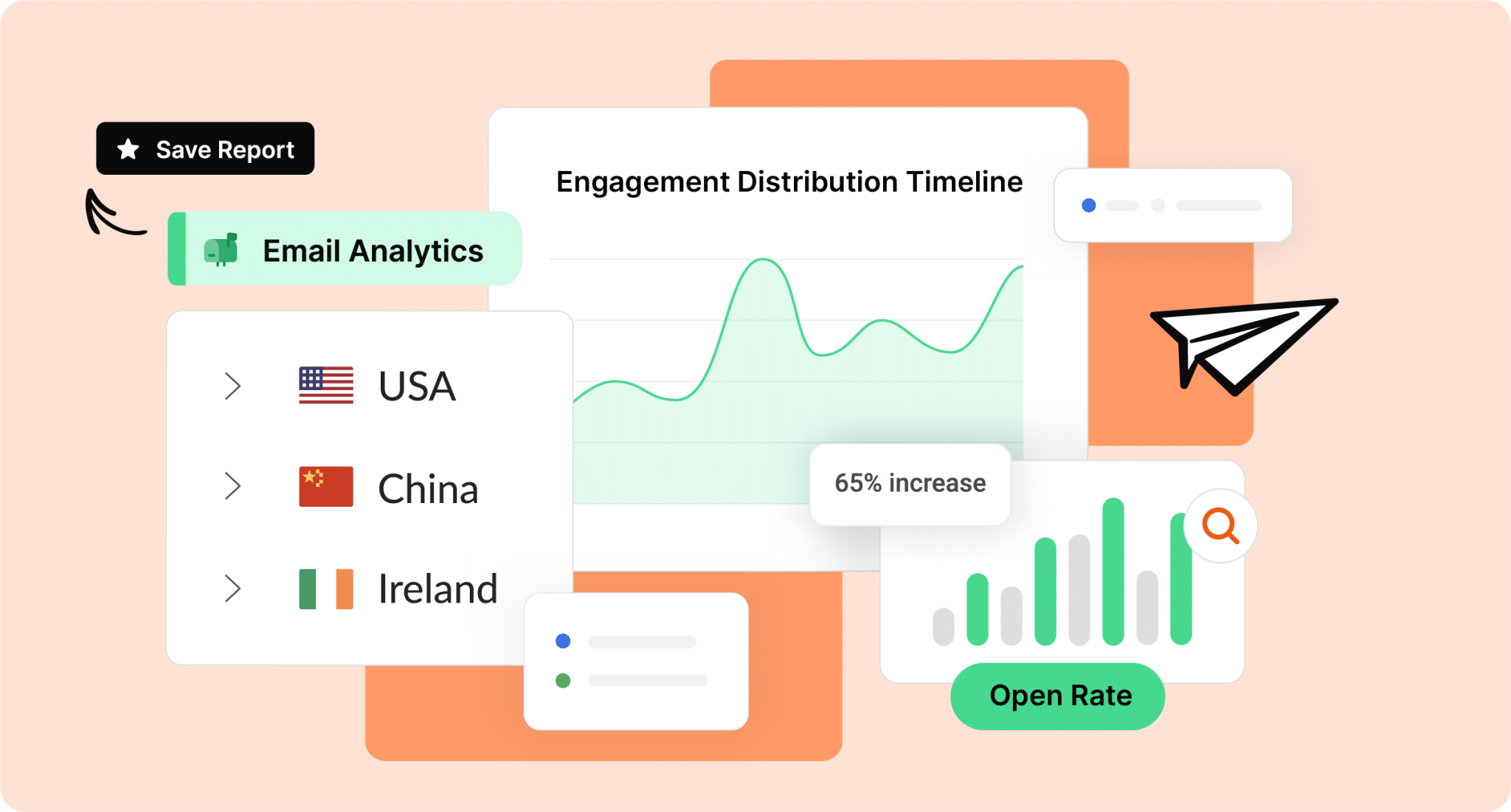
ContactMonkey connects directly to your directory and HRIS so your audiences stay current automatically. For organizations using Microsoft Azure AD or Entra ID, employee data syncs nightly, reflecting every addition, transfer, and termination without a manual update or IT request. You can learn more about how the Azure AD connection works in ContactMonkey’s list management documentation. ContactMonkey recently expanded its native HRIS integrations to 80+ providers, covering the full range of HR platforms from global enterprise systems to regional mid-market tools. For IC teams who have historically been told their HRIS is not supported, that answer has changed. The question of whether ContactMonkey works with your HR system is no longer a barrier for the overwhelming majority of organizations.
See who actually read your email when sending to Outlook distribution lists
When you send to a Microsoft 365 Distribution Group in standard Outlook, employee engagement data stops at delivery. You know the email went out. You do not know who opened it, who clicked, who ignored it, and who never received it at all. For IC teams responsible for critical updates like policy changes, benefits enrollment, or safety communications, that blind spot carries real risk.
ContactMonkey’s Distribution List Expansion resolves this by expanding your Outlook distribution list into its individual members at the point of send, allowing ContactMonkey to track engagement at the individual level rather than treating the group as a single recipient. The result is a send that reaches your audience through Outlook exactly as it always has, with a full engagement picture on the other side.
What you can see after every send:
- Who opened the email and when
- Who clicked through and which links they engaged with
- How long recipients spent reading
- Which employees have not opened an email, so you can follow up intentionally
For IC teams making the case for their work internally, this data is also what turns a send report into a leadership conversation. Rather than reporting that an email went out, you can show open rates by department, read time by audience segment, and engagement trends over time.

Build targeted audiences by department, location, or role instead of one static list
A single Outlook distribution list works well when everyone in it needs the same message. But the reality is that most internal communications don’t work that way. A safety communication relevant to your warehouse team has no business reaching your corporate office. A leadership message for people managers should not go to individual contributors. Instead of maintaining separate Outlook distribution lists for every audience, you can build segments based on employee data and let the platform handle the targeting. Dynamic distribution lists for employee email solve what static Outlook groups were never designed to handle. Audiences that reflect your workforce in real time.
- Audience segmentation lets you group employees by department, role, location, seniority, or any other attribute pulled from your directory or HRIS and send to those groups without creating or managing a new list for each one. As your organization changes, your segments update automatically rather than requiring a manual list rebuild every time there is a reorg or a new team created.
- Dynamic content takes this further by removing the need to send separate versions of the same email to different employee distribution lists. You build one email with conditional content blocks, and each block displays only to employees whose attributes match the targeting rule you set. One send, multiple tailored experiences, and no version control problem to manage afterward.

Why relevance is now a requirement in internal comms:
In our research on the key employee engagement trends IC teams need to pay attention to in 2026, one finding stands out clearly: personalization in internal email isn’t optional anymore. Employee attention is more fragmented than it has ever been, and organization-wide communications that treat a 5,000-person workforce as a single audience are increasingly the ones that get ignored.
GSIC 2026 found that more than half of internal communicators say employees sometimes miss key updates, while 30% say this happens often or very often. Half of respondents also estimate that employees lose one to three hours per week due to poor or unclear communication, with an additional 29% reporting four to six hours of lost time. The pattern points to a targeting problem as much as a volume problem. When employees receive messages that feel irrelevant to their role or location, they stop engaging with the channel altogether, which means the messages that do matter to them get missed too.
Audience segmentation and dynamic content are the most direct tools available to address this, and they work most effectively when your underlying audience data is accurate, which brings the conversation back to keeping your lists current through directory and HRIS sync.

Two scenarios IC teams face more than they should due to poor list management
Managing distribution lists in Outlook is straightforward when your organization is stable and your lists are small. The situations below are what happen when those conditions change, and why having the right infrastructure behind your internal email strategy matters more than most IC teams realize until something goes wrong.
Scenario 1: M&A and restructuring leaves your distribution lists out of date
The problem: A mid-sized manufacturing company goes through a regional restructuring. Eight department lists need to be updated across three locations. The IC team spends the better part of two weeks tracking down list owners, submitting IT requests for the Microsoft 365 distribution groups that need changes, and manually cross-referencing spreadsheets to figure out which employees now belong to which audience. By the time the lists are updated, two sends have already gone out to the wrong groups, one of which included employees in roles that no longer exist.
Why it happens: Static Outlook distribution lists require manual intervention every time the organization changes shape. When eight lists need updating simultaneously, the margin for error compounds with every individual change. There is no single source of truth and no way to know which lists are current without checking each one individually.
How to avoid it: If your organization had dynamic distribution lists for employee email tied to your HRIS, a restructuring would not generate two weeks of list maintenance. When an employee’s department or location changes in the HR system, that change flows into ContactMonkey automatically at the next nightly sync, with no IT request and no window of time where your lists are partially updated and partially wrong. The two sends that reached the wrong audience would not have happened because the audience would have already reflected the new structure before they went out. For organizations going through M&A activity or frequent reorgs, ContactMonkey’s List Management and HRIS sync means your audience infrastructure keeps pace with your organization automatically, so the IC team stays focused on the communication itself.
Scenario 2: One confusing list name sends a local update to your entire organization
The problem: A facilities coordinator submits a parking lot closure notice for employees at one office location. The IC team, working through a busy send queue, selects what looks like the right Outlook distribution list from a dropdown showing three similarly named options: “All Staff,” “All Staff North America,” and “All Staff Operations.” The email goes to all 4,000 employees. The facilities update, relevant to roughly 200 people, lands in the inbox of every employee in the organization. The IC team spends the next hour fielding confused replies and drafting an apology.
Why it happens: When distribution lists in Outlook are named without a clear convention, lists that serve very different audiences start to look identical under pressure. Without restricted send permissions on organization-wide groups, anyone with access can send to the entire company, and a moment of uncertainty about which list is correct becomes a company-wide send error.
How to avoid it: A clear naming convention and restricted send permissions on your largest Outlook distribution lists would have prevented this entirely. With ContactMonkey, the governance that prevents this kind of error is built into the sending workflow. List names follow a consistent structure, send permissions are controlled at the platform level so only authorized IC team members can send to organization-wide audiences, and the audience is confirmed before anything goes out. When it comes to the actual email content, ConfidenceCheck adds a final review layer that catches errors, broken links, and accessibility issues before the send button is pressed. If the facilities coordinator had submitted the update through ContactMonkey, the IC team would have selected from a clearly structured list library, confirmed the right audience, and reviewed the content before it reached anyone.
Take Control of Your Outlook Distribution Lists With ContactMonkey
Managing distribution lists in Outlook is one of those tasks that feels manageable until it suddenly isn’t. The steps for creating and editing lists across Classic Outlook, New Outlook, and Microsoft 365 are straightforward. What tends to add up over time is everything else: the lists that never get audited, the permissions that never get restricted, and the all-staff send that goes to the wrong audience because three lists had similar names.
If your team is spending more time maintaining Outlook distribution lists than sending communications that actually move employees, that is the problem worth solving. ContactMonkey’s List Management, directory sync, HRIS integrations, and audience segmentation are built specifically for IC teams who need to manage email distribution lists without IT dependency. Your lists stay current, your audiences stay relevant, and the employee engagement analytics you need to show leadership are there after every send.
Want to send targeted employee emails from Outlook with better list control and measurable results? Book a ContactMonkey demo.