For most internal communicators, Outlook is where the big moments happen. The CEO update, the benefits enrollment reminder, the monthly employee newsletter, the policy change that legal has rewritten four times. It all goes out from Outlook, and then you wait. Maybe a few read receipts trickle in, maybe a manager forwards a reply, and that’s about all you get to judge whether the message landed.
The ContactMonkey Outlook add-in is built for that moment after you hit send. It’s the part of the ContactMonkey Outlook integration that lives right inside your compose window, so you can drop in a branded template, pick who receives it, decide how you want to track it, and see opens, clicks, and read time afterwards, all from the inbox you already work in.
That visibility matters more than most teams realize. ContactMonkey’s Global State of Internal Communications Report 2026 (GSIC) found that only 10% of communicators believe more than 75% of employees consistently read or engage with internal emails. Yet the 255,000+ campaigns behind our internal email benchmarks averaged a 76% open rate. A lot of communicators are underestimating their own reach simply because they’ve never had a reliable way to measure it.
Below, we’ll walk through what the add-in does, how to get it into Outlook, what a typical send looks like, and what it tracks that Outlook can’t show you on its own.
What Is the ContactMonkey Outlook Add-In?
So what is the ContactMonkey Outlook add-in, exactly? An add-in is a small app that plugs into Outlook and gives it new buttons and tools, a bit like an extension in your web browser. ContactMonkey’s add-in opens as a panel on the right side of your Outlook message and connects Outlook to the rest of the ContactMonkey internal communications platform. From that panel you can pull in emails your team designed in ContactMonkey’s internal email template builder, add recipients, personalize each email, choose how you want to track it, send a test, and then send or schedule the real thing.
You keep working in Outlook the whole time. Your email still goes out from your own address, through your company’s existing email setup and domain, without passing through a third-party server. That’s a big part of why IT and security teams tend to be comfortable with it, and why employees see a message from a sender they recognize instead of something that looks like a marketing blast.
The add-in also shares one library with ContactMonkey’s web dashboard and desktop app. A communicator who likes a bigger screen for designing a newsletter and a colleague who prefers to stay in Outlook are working from the same templates, campaigns, and analytics.


Which Version of the ContactMonkey Add-In Works With Your Outlook?
Before you install anything, it helps to know that ContactMonkey offers two versions of the add-in, and the right one depends on how your organization runs Outlook.
The Web Add-in is built for Microsoft 365, the subscription that bundles Outlook with Teams and Microsoft’s other cloud apps. It works in new Outlook, Outlook Classic, Outlook on the web (the version you open in a browser), and Outlook for Mac, and it updates automatically in the cloud, so you always have the latest features without reinstalling anything. The Non-Web Add-in is for organizations running desktop Outlook on Windows outside of Microsoft 365, and it installs as a downloadable program. If you’re still new to internal comms or aren’t sure what an Outlook Web Add-in is, check out our internal communications glossary.
There are a few practical differences worth knowing before a big send.
- Device support: The Web Add-in works on Windows, on Mac, and in Outlook on the web, while the Non-Web Add-in only runs in desktop Outlook on Windows. If anyone on your comms team works on a Mac or prefers Outlook in the browser, the Web Add-in is the version that works for them.
- Individual tracking limits: Individual tracking shows you exactly which employees opened and clicked your email. The Web Add-in supports it for up to 1,000 recipients in the To field, compared with 500 for the Non-Web Add-in. If you regularly email a few hundred people at once and want names attached to your results, that limit makes a real difference.
- Options for larger audiences: Sending to more people than your tracking limit allows? You can switch to overall tracking, which gives you combined results for the whole send, or upload a CSV, which is simply a spreadsheet file of your recipients’ email addresses.
- Scheduled sends: The Web Add-in sends scheduled emails reliably without you keeping Outlook open, so you can line up Monday morning’s all-staff update on Friday afternoon and log off for the weekend.
For most Microsoft 365 teams, the Web Add-in is the one to use, and it’s the version the rest of this guide focuses on.
For a full side-by-side breakdown, refer to the Web Add-in vs Non-Web Add-in feature comparison in our help center.
How Do You Set Up the ContactMonkey Outlook Add-In?
Getting the add-in into Outlook takes about 10 minutes, and for plenty of communicators it’s quicker than that because IT has already done the work. This order saves the most back-and-forth with your IT team.
- Activate your ContactMonkey account first. Open your invitation email from ContactMonkey, click the activation link, and sign in with Microsoft. Signing in to the add-in before your account is active is one of the most common reasons people run into login trouble later.
- Check whether ContactMonkey is already in your Outlook. Open a new message and click All Apps in Outlook Classic, or Apps in new Outlook and Outlook on the web. If your IT team deployed ContactMonkey for everyone, you’ll see it listed. Newly deployed apps can take up to 12 hours to appear, so restart Outlook and check again before you chase anyone down.
- Add it yourself if you don’t see it. From that same menu, choose Add apps, search for ContactMonkey, and click Add. You can also install it from the ContactMonkey listing on Microsoft Marketplace by clicking Get it now.
- Pin it and sign in. Right-click the ContactMonkey icon and choose Pin so it stays visible in your ribbon (the row of buttons along the top of your message), then click the icon and continue with Microsoft. The add-in opens on the right side of your message window.
- Bring in IT if the install fails. An “Installation failed” or “Something went wrong” message almost always means your organization limits who can add apps. Your Microsoft 365 admin can deploy ContactMonkey for you from the Microsoft 365 admin center, the dashboard IT uses to manage everyone’s Microsoft apps, under Settings > Integrated apps. It will then show up in your ribbon automatically.
If your organization runs Outlook on Windows desktops outside Microsoft 365, the Non-Web Add-in installs a little differently. You download the installer from ContactMonkey, run it, and the add-in appears on the right-hand side of desktop Outlook, ready for you to log in with Microsoft. Either way, your IT team can roll the add-in out to everyone at once if your devices restrict installs. For full step-by-step setup instructions, refer to our help center guides for the Web Add-in and the Non-Web Add-in.

How Does the ContactMonkey Outlook Add-In Work Day to Day?
Once the add-in is pinned, sending an internal email through it follows the same rhythm every time. Here’s what a typical send looks like for most comms teams.
- Start a new message and open ContactMonkey. The panel loads next to your draft, so your Outlook message and the add-in sit side by side.
- Insert your email. Search the campaigns saved in your ContactMonkey library, filter by the ones you created or the ones your teammates built, and insert the one you want. The content, formatting, and saved settings load straight into your Outlook message.
- Add your audience. Type individual names into the To field, or add an employee distribution list, which is a single email address (like allstaff@yourcompany.com) that delivers your message to everyone in a group. You can also upload a CSV or pick a saved contact list if your team uses ContactMonkey’s List Management. Count Recipients shows how many people will get the email before you commit.
- Choose your tracking and personalize. Pick overall, anonymous, or individual tracking (we explain each one below). With individual tracking, you can also add merge fields, which are placeholders like {First Name} that fill in with each employee’s own details, so every email reads like it was written for the person opening it. Our guide to sending personalized internal emails walks through this step by step.
- Send a test. Send Test goes to your own inbox or to the people in the To field, which makes it easy to get a leader or approver to check the email on their own screen.
- Send & Track, or schedule it. Click Send & Track to send now, or the clock icon beside it to schedule a date and time. Always use the add-in’s buttons instead of Outlook’s own Send button, which skips ContactMonkey tracking and can break your formatting.
Watch this video to see the ContactMonkey Outlook add-in in action, from inserting your email in Outlook to tracking how employees engage with it.
Which tracking option should you choose?
Choosing a tracking method comes down to your privacy requirements and what you need to report on. Overall tracking treats a distribution list as one recipient and gives you combined numbers for the whole send. It’s the fastest way to send and works well for routine updates where the big picture is enough.
Anonymous tracking is the middle ground. You’ll see how many people opened your email and clicked your links, without seeing who those people were. Think of it like counting how many people walked into a town hall without checking names at the door. That makes it a good fit if your organization has strict privacy rules or employees in Europe, since anonymous tracking is GDPR-compliant (GDPR is the European Union’s data privacy law).
Individual tracking shows you exactly who opened your email and what they clicked. It’s the one to use when you need to know specific people have seen something, like a mandatory policy update everyone has to read or a benefits enrollment deadline, so you can follow up with the people who haven’t opened it yet. It’s also the option that lets you use merge fields to personalize each email with details like first names.
One thing to keep in mind is that anonymous and individual tracking both take a little longer to send. That’s because ContactMonkey sends each employee their own copy of the email so it can track every copy separately, instead of sending one email to the whole list at once. To learn more about every button and setting in the add-in panel, refer to our Web Add-in guide in the help center.
What Does the ContactMonkey Outlook Add-In Track That Standard Outlook Doesn’t?
What can you see with the add-in that Outlook won’t show you on its own? Outlook gives you read receipts, a pop-up that asks the recipient to confirm they opened your email (which they can decline), plus voting buttons for quick polls. They’re handy for a one-off question, but there’s no campaign-level reporting you could take into a leadership meeting. Here’s how Outlook email tracking compares with and without the add-in.
| Capability | Outlook on its own | With the ContactMonkey Outlook add-in |
| Open tracking | Read receipts, which employees can decline | Opens tracked automatically, with no prompt for employees |
| Click tracking | Not available | Click rate and click-to-open rate for every link |
| Read time | Not available | Read time for each campaign |
| Device and location | Not available | Opens broken down by device and location |
| Tracking choice | Not available | Overall, anonymous, or individual tracking |
| Branded design | Signatures and basic themes | Branded templates built in a drag-and-drop builder |
| Employee feedback | Voting buttons | Surveys and emoji reactions inside the email |
| Reporting for leadership | Not available | Real-time dashboards you can share |
The read time and click data are usually where comms teams find their next improvement. Click-to-open rate is the share of people who opened your email and then clicked a link inside it. If your open rate is healthy but your click-to-open rate is low, people saw the email and didn’t find a reason to go further, and the link data shows exactly which stories earned attention. You can see all of it in ContactMonkey’s internal email analytics dashboards, share it with leadership, and compare each send against your own history. Our guide to advanced email analytics in Outlook goes deeper on reporting.
Why Do Internal Communicators Use an Outlook Add-In Instead of Outlook Alone?
Why add another layer to Outlook at all? Mostly because Outlook is where employees are already reading. In the 2026 Internal Email Benchmark Report, 88% of campaigns were sent from Microsoft 365, and desktop accounted for 84% of all internal email engagement, which the report attributes largely to how central Outlook is to the workday. If that’s where your people read, it makes sense to build and measure your emails there too.
The other reason is measurement. GSIC 2026 found that 56% of communicators say employees sometimes miss key updates. Half of respondents estimated that poor or unclear communication costs employees 1 to 3 hours a week, and another 29% put it at 4 to 6 hours. Those numbers are hard to improve when you can’t see which emails landed. With opens, clicks, and read time on every send, you can spot the update half the company skipped and follow up with the teams who missed it, instead of sending another all-staff reminder to people who already read the first one.
Using the add-in also gives you access to ContactMonkey’s wider set of internal communications features, which a plain Outlook message can’t offer on its own. You can embed employee surveys and emoji reactions right in the email, so people can share feedback in one click without opening a separate form. The dynamic content feature lets you build one email where certain sections only appear for certain groups, so your Toronto office sees its own event details while your Chicago office sees theirs, and you never have to build and maintain two versions. And audience segmentation lets you sort employees into groups by role, department, or location, so a message about a new sales tool reaches the sales team and skips everyone else’s inbox.

Communicators who’ve made the switch describe the change in similar terms. Jerilyn Hall, Employee Communications Manager at Mustang Cat, described where her team started before ContactMonkey.
“Before ContactMonkey, we had nothing. We had no benchmark. We had no idea what messaging was getting to our employees, how they were best receiving it.”
At Freedom Mobile, Jeremy Roberts, Sr. Manager of Communications, Go-To-Market & Incentives, saw 15% higher open rates and a 40% boost in read rate after his team started using ContactMonkey. Here’s how he sums it up.
“[ContactMonkey] really does allow our teams to be creative, but also provides the analytics to make sure we’re doing the right things.”
What to Look for in an Internal Communications Platform Outlook Integration
Plenty of tools say they work with Outlook, so if you’re comparing options, it’s worth looking closely at how each one connects. When you’re evaluating an internal communications platform Outlook integration, start with where the email sends from. Tools that send through your own Microsoft 365 or Exchange setup keep your sender name, domain, and inbox delivery intact, while tools that route through their own servers can trip spam filters or look unfamiliar to employees.
From there, check where the reporting lives and who the tool was built for. You want opens, clicks, and read time available without exporting spreadsheets, and you want a tool designed for employee email, with features like distribution list tracking, anonymous tracking, and bulk internal email sending that gets you past Outlook’s sending limits for large audiences. Most marketing email tools are built for customer lists instead.

Whether you’re still researching internal comms platforms, deciding between a couple of options, looking for quick side-by-side comparisons, or putting the finishing touches on a business case for internal communications, we’ve got you covered. Our internal communications buying guide walks you through the full evaluation step by step, our roundup of the best Outlook add-ins makes it easy to compare tools that work right inside Outlook, and our business case builder helps you show leadership why the investment is worth it.
How Much Does the ContactMonkey Outlook Add-In Cost?
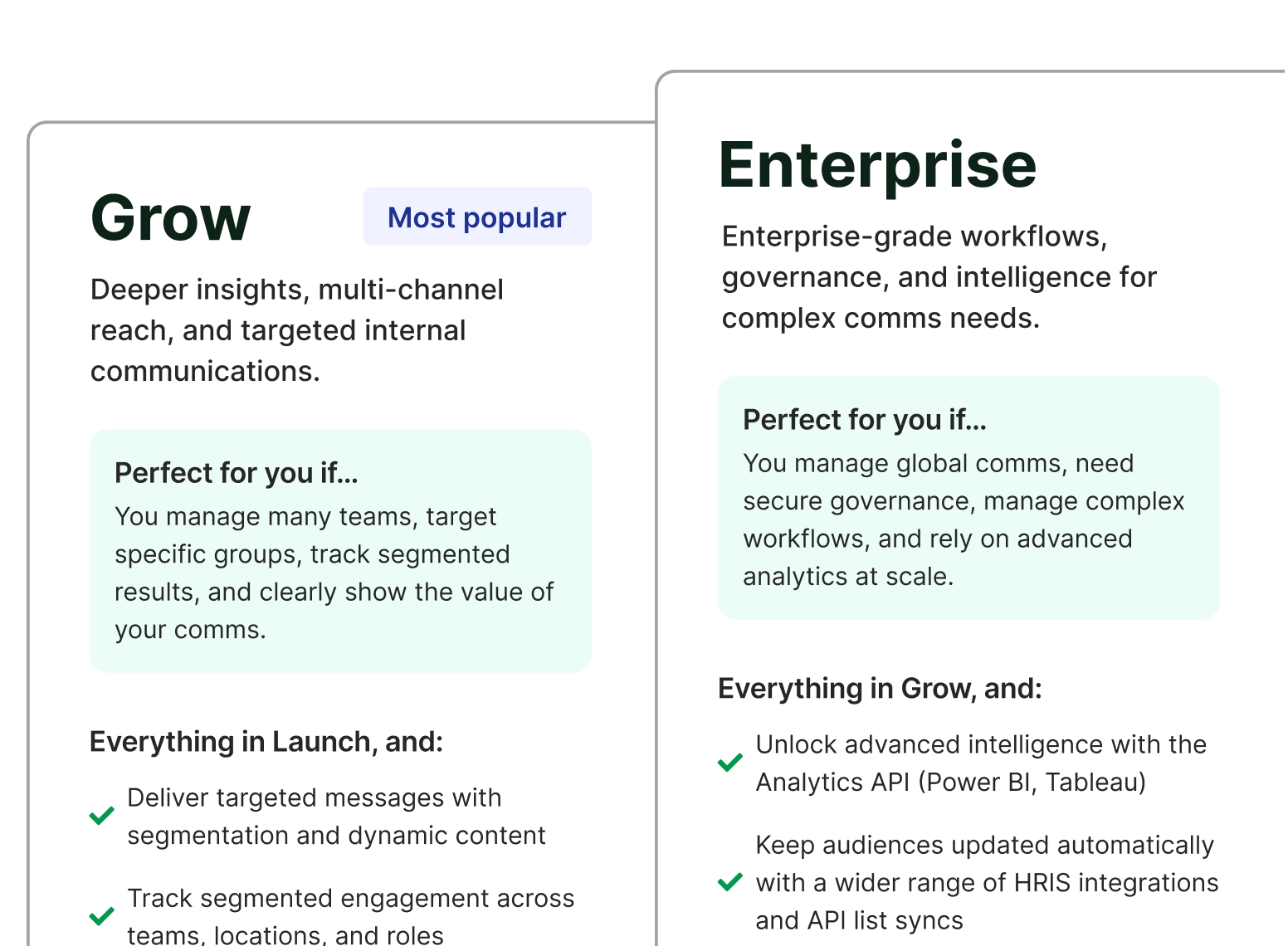
How much does the add-in cost? It’s available on ContactMonkey’s Launch, Grow, and Enterprise plans rather than sold on its own. Plans are priced by audience size, so your quote depends on how many employees you’re sending to. You can compare plans on the ContactMonkey pricing page or book a demo to get a number for your organization.

Ready to See the ContactMonkey Outlook Add-In in Action?
If your team sends its most important updates from Outlook and still relies on read receipts and hallway feedback to know how they did, the add-in gives you real numbers without asking anyone to change where they work. Employees keep reading in their inbox, and you get the data to show leadership what’s landing and what needs another look.
Explore the full ContactMonkey Outlook integration to see everything it includes, take a self-guided product tour, or book a demo to see the add-in working in your own Outlook.
FAQ
Does the ContactMonkey Outlook add-in work on a Mac?
Yes. The ContactMonkey Web Add-in works in Outlook for Mac, as well as on Windows and in Outlook on the web. The Non-Web Add-in is for Windows desktop Outlook only.
What’s the difference between the ContactMonkey Web Add-in and Non-Web Add-in?
The Web Add-in is for Microsoft 365 and works on Windows, Mac, and Outlook on the web, with individual tracking for up to 1,000 recipients in the To field and automatic cloud updates. The Non-Web Add-in is for Windows desktop Outlook outside Microsoft 365 and supports individual tracking for up to 500 recipients in the To field. For full details, refer to the feature comparison in our help center.
Can my IT team install the ContactMonkey add-in for everyone?
Yes. A Microsoft 365 admin can deploy ContactMonkey to everyone from the Microsoft 365 admin center under Settings > Integrated apps. It then appears in each user’s Outlook ribbon automatically, usually within 12 hours. Your IT team can find the full deployment steps in our help center.
Can I track email opens and clicks in Outlook with ContactMonkey?
Yes. Tracking is the add-in’s core job. It reports opens, clicks, click-to-open rate, read time, and device data for every send, with overall, anonymous, or individual tracking depending on your needs.
Is the ContactMonkey Outlook add-in free?
The add-in is included with ContactMonkey’s Launch, Grow, and Enterprise plans, which are priced by audience size. You can see plan details on the ContactMonkey pricing page or book a demo for a quote.